Step-By-Step Process
The step-by-step process will guide you to create a RF plan,
AP placement and to get the final report or bill of material.
AP placement and to get the final report or bill of material.
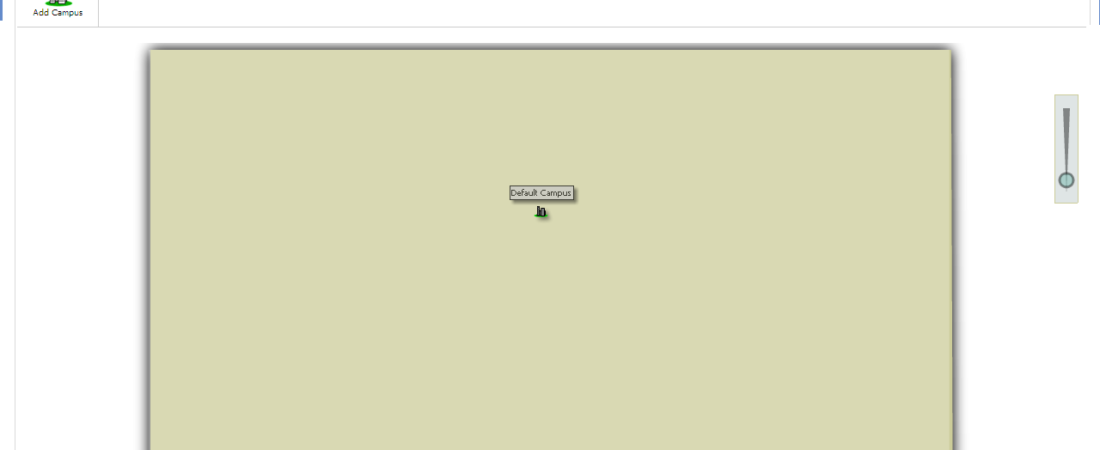
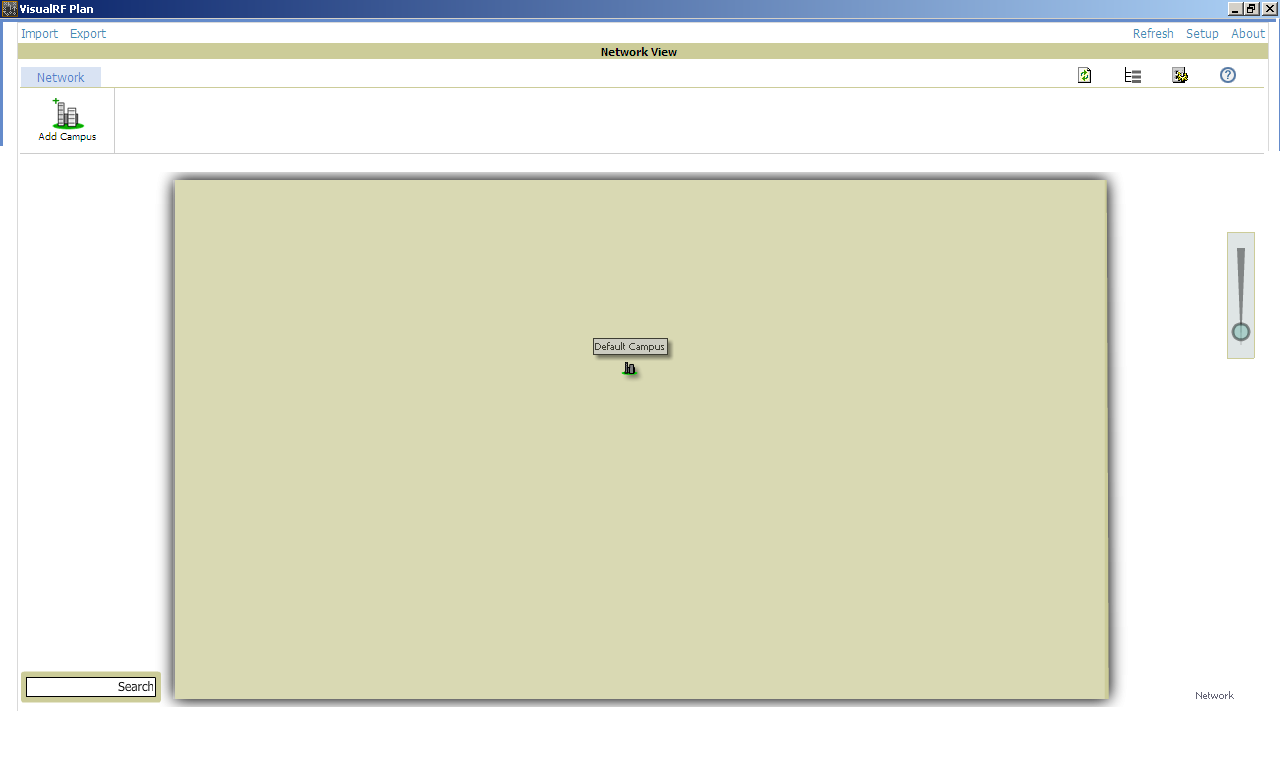
- The
following screen is the First and the standard screen you will see after
installing the Visual RF tool and launching it.
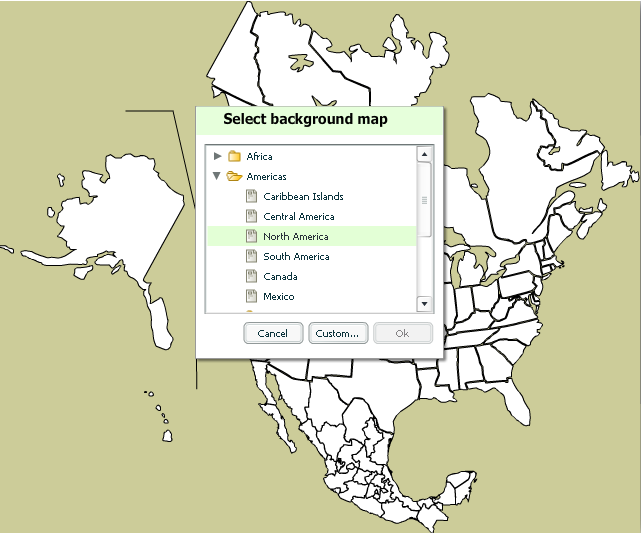
- Set the
geographical location of the campus. For e.g. if the location is Somewhere
in Texas, USA, then right click on the screen, click on set map ->
select the region like Americas -> North America.
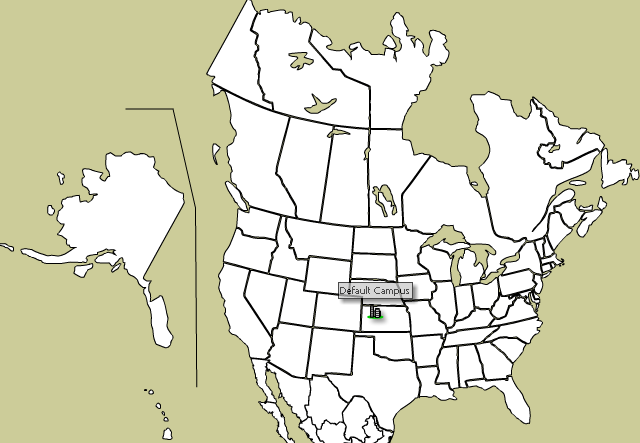
You will see a
Map of USA on the screen. Now drag the default campus picture over the
State/Province where the approximate location of the campus lies.
Map of USA on the screen. Now drag the default campus picture over the
State/Province where the approximate location of the campus lies.
- This
tool has Auto Save feature therefore the moment you will start dragging the
campus picture from one location to another it will save the current
location automatically.
- Click
on the Campus picture and you will see the default Building in this campus
with No Floors/APs and Clients etc.
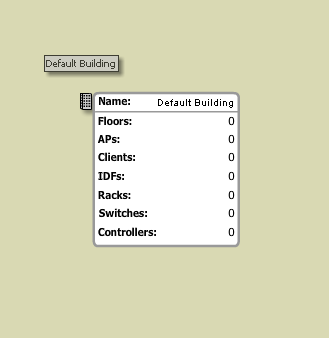
- Click
on the Building and you will see an option to add/insert Floor plan in
this Building on the top left corner of the screen.
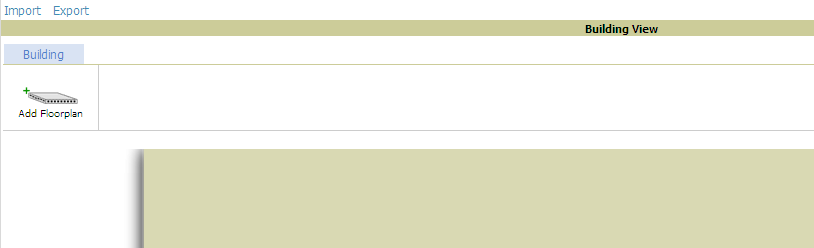
- Now
browse for the particular location where the maps are and select the
required floor plan. Click on Upload to Upload it on the Visual RF.
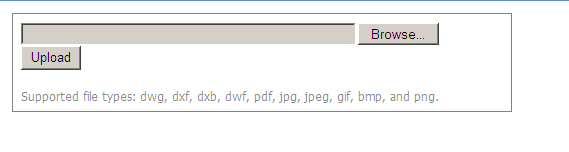
- After
Adding the RF plan in the Tool you will see the following screen.
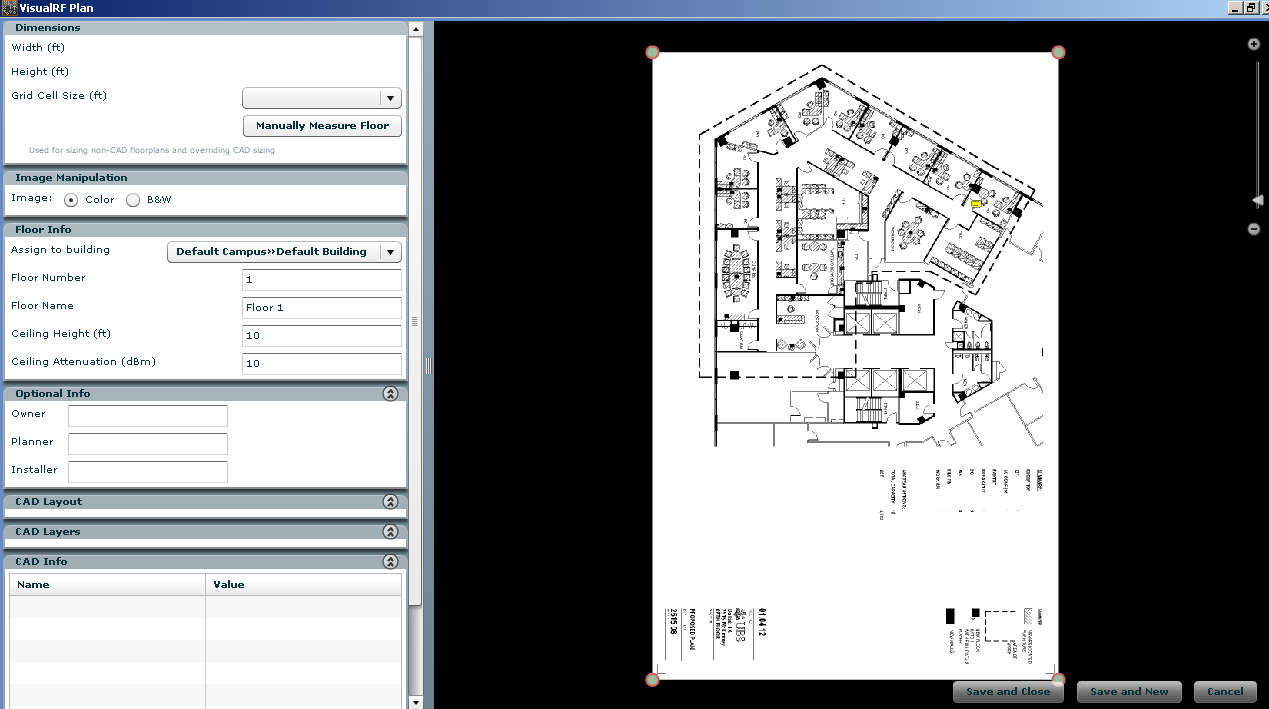
- On the
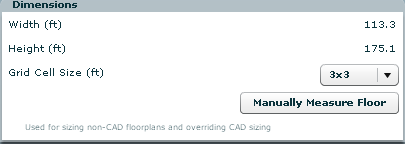
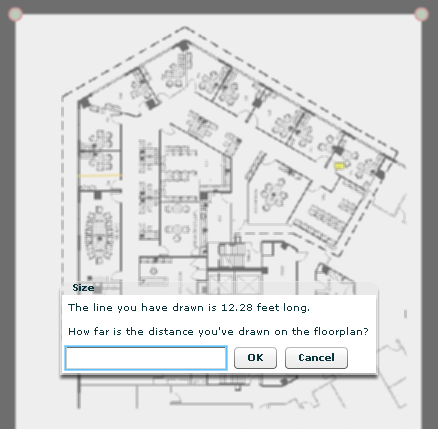
Left Side Pane – Under the Dimensions Box – Click on Manually Measure Floor and set the dimension of the any room
or corridor etc on the map. This dimension will be taken as a reference for
the APs to calculate the parameters like – Interferences, SNR, Data rate
and Signal Strength etc.
Note: If you are not sure about the dimensions on
the floor then try to import the floor plan in CAD format. It will calculate
the dimensions automatically.
the floor then try to import the floor plan in CAD format. It will calculate
the dimensions automatically.
- The
next option is to set if you want the floor plan to be in Black &
white or in Colored format. Choose which ever is required

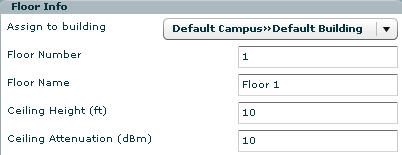
- The
next option is to set the floor description like – Floor number, name
Ceiling height and Ceiling Attenuation.
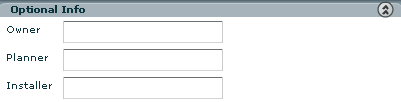
- Under Option info option
you can set the Owner name, Planner name and installer information etc.
- The other options like –
CAD layout, CAD layer and CAD info can be set only if the Floor plan which
is imported in the tool is in CAD format i.e. “.dwg” extension file. - You can adjust the Floor
plan as per your need or Corp it in order to focus on the area which has
to be worked upon or where the APs will be installed and the Network
coverage required. - After making the required
changes, Click on Save and close
button.
The new window will appear with the following options:
a) Overlay
b) Display
c) Edit
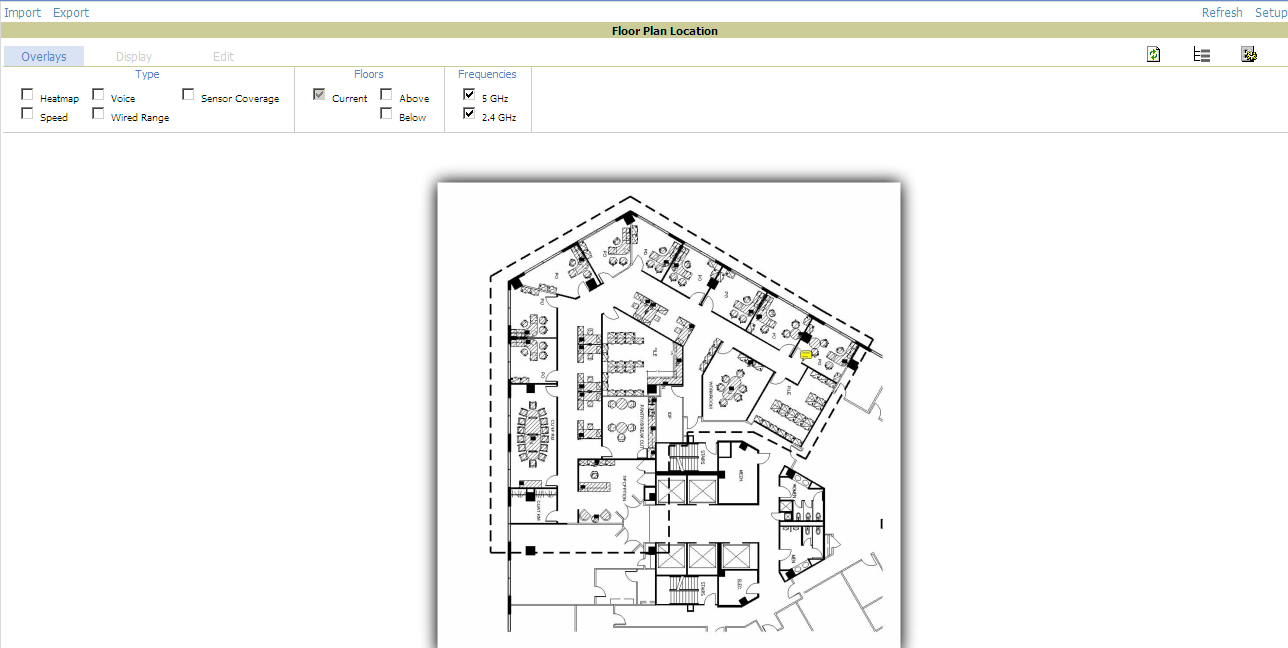
Overlay – This gives you an option to choose what
kind of RF plan we want. For e.g. if this is a heat map then it will also ask
you about the signal cutoff. You can set this between -65dBm to -75dBm for
better performance even if the Voice is also used over the wireless network. It
also gives option to choose the frequencies you want to broadcast in your
wireless domain i.e. 2.4 GHz or 5 GHz. You can select any one of these options
or may select both.
kind of RF plan we want. For e.g. if this is a heat map then it will also ask
you about the signal cutoff. You can set this between -65dBm to -75dBm for
better performance even if the Voice is also used over the wireless network. It
also gives option to choose the frequencies you want to broadcast in your
wireless domain i.e. 2.4 GHz or 5 GHz. You can select any one of these options
or may select both.
Display – This gives you
an option to choose the Device type and Floor plan features.
an option to choose the Device type and Floor plan features.
Edit – This provides
several options to Draw the walls, Doors etc. You need to build/Simulate the
walls, Doors etc in order to get the real time readings about the data
rate/SNR/Signal Strength etc. To do this, click on Editing unlocked and then
click on Draw walls, Draw regions. You can also add the APs into the floor
plan. The moment you will add an AP after selecting if from the drop down the
AP will show the Area of network coverage on the floor plan.
several options to Draw the walls, Doors etc. You need to build/Simulate the
walls, Doors etc in order to get the real time readings about the data
rate/SNR/Signal Strength etc. To do this, click on Editing unlocked and then
click on Draw walls, Draw regions. You can also add the APs into the floor
plan. The moment you will add an AP after selecting if from the drop down the
AP will show the Area of network coverage on the floor plan.
Note: In order to get the very accurate end result
of the AP provisioning on the real floor, it is always recommended to
Simulate/Draw the walls, Cubicles etc. on the floor plan in the tool. It should
be drawn with more accuracy for better results.
of the AP provisioning on the real floor, it is always recommended to
Simulate/Draw the walls, Cubicles etc. on the floor plan in the tool. It should
be drawn with more accuracy for better results.
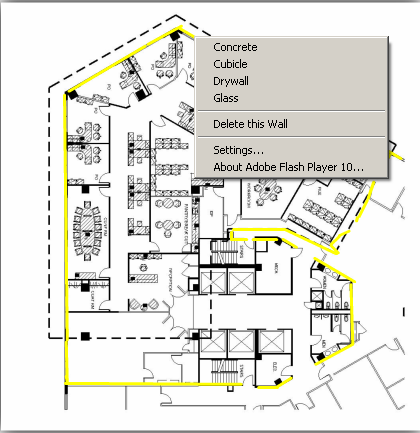
- To Draw/Simulate the walls
on the Floor plan in the Visual RF tool, Click on Edit and Click on Unlock
editing to start editing the floor plan.
Click on – Draw Wall icon and start
simulating the walls on the Floor map. You can right click on the floor map for
multiple options like – Cubicles, concrete wall etc.
simulating the walls on the Floor map. You can right click on the floor map for
multiple options like – Cubicles, concrete wall etc.

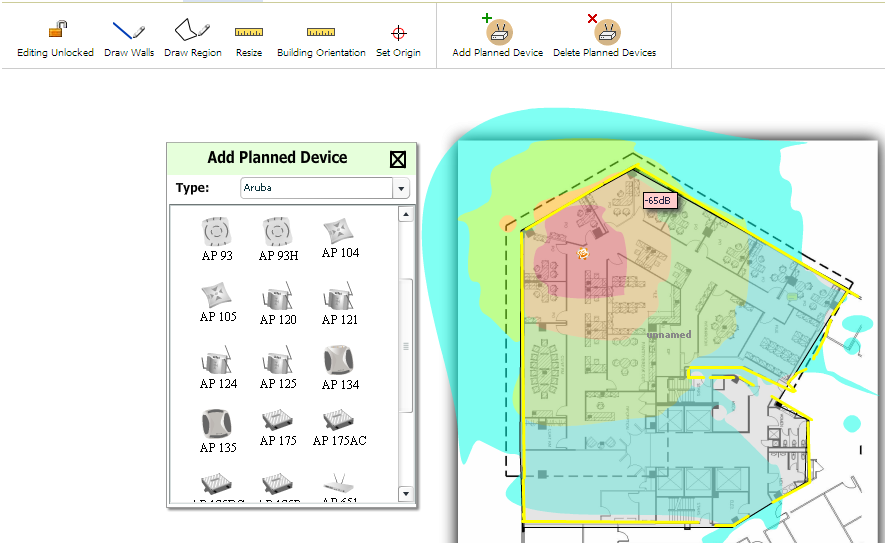
- We can set the APs
manually and automatically provision them. In order to do it manually,
click on “Add Planned Device” Tab
and select the AP you want to deploy on the floor. Drag the AP on the
floor map and set it on the required Area for e.g. conference room or
corridor etc.
- Auto provisioning of the
APs can be done by first selecting the region where the APs are to be deployed.
You can create Walls in prior to get the exact signal strengths. It will
show where the signals are degrading or fading. - Click on Draw Region and
Choose the Area of AP deployment.

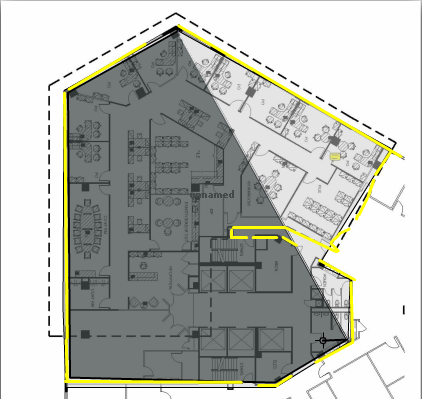
- The moment you complete
selecting the region, double click on it. A popup window will ask about
the Region name and Region type.
Given any name of the Region for e.g. Dallas and Choose Region type
as Planning. Click OK and
proceed to the next step.
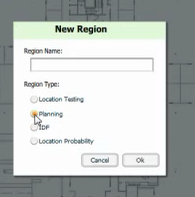
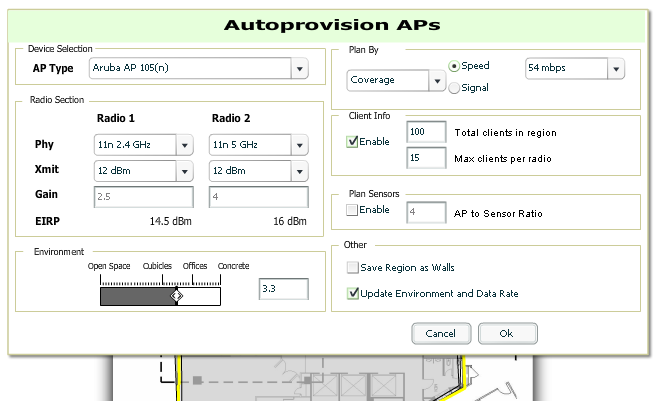
- A new window will appear
asking information regarding the Auto provisioning.
a) AP
Type – Choose the type of Access point to be deployed on your floor.
Type – Choose the type of Access point to be deployed on your floor.
b) Under
the radio selection menu, choose the type of radios to be enabled. For e.g.
Radio 1 with 2.4 GHz and Radio 2 with 5 GHz only.
the radio selection menu, choose the type of radios to be enabled. For e.g.
Radio 1 with 2.4 GHz and Radio 2 with 5 GHz only.
c) Environment
– Select the kind of Area you have on the floor. For e.g. if you have both
cubicles in the office then drag the bar between that range.
– Select the kind of Area you have on the floor. For e.g. if you have both
cubicles in the office then drag the bar between that range.
d) Plan
By – This gives you an option to plan your AP auto provisioning using Coverage
– Speed or signal strength. You can choose any of the options as per your
requirement. For e.g. 54 mbps or define Signal Strength. For e.g. -65 dBm
By – This gives you an option to plan your AP auto provisioning using Coverage
– Speed or signal strength. You can choose any of the options as per your
requirement. For e.g. 54 mbps or define Signal Strength. For e.g. -65 dBm
e) Client
Info – Type the number of Client you will have on the floor and how many
clients you want to get associated Per Radio. For e.g. 10, 15 or any number of
clients.
Info – Type the number of Client you will have on the floor and how many
clients you want to get associated Per Radio. For e.g. 10, 15 or any number of
clients.
Click OK button to Start the Auto
Provisioning.
Provisioning.
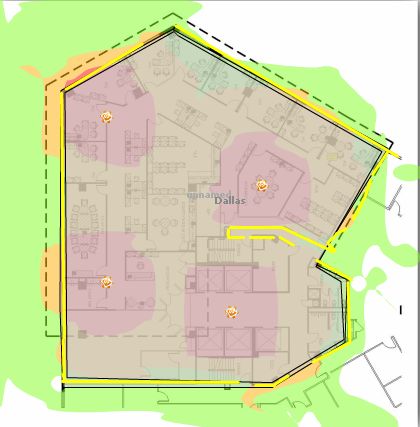
- The Heatmap will appear
with the APs provisioned on the floor map as following.

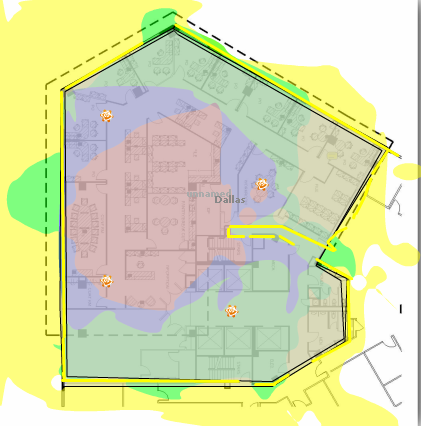
- You can select and
de-select various options under Overlay Tab for verifying the output in
other modes. This will show the variation in the signal strength or Data
rate under various options chooses as required.
For e.g. if you want to see the
results of AP signal propagation on Voice Over wireless network with -65 dBm as
signal strength and 2.4 GHz frequency only used. The floor map will appear
something like this.
results of AP signal propagation on Voice Over wireless network with -65 dBm as
signal strength and 2.4 GHz frequency only used. The floor map will appear
something like this.

Working with Multiple Floors Auto provisioning.
- If you are working on a
Multi-floor building then click on the Building name (Right hand side
below side corner) and Right click on the floor.
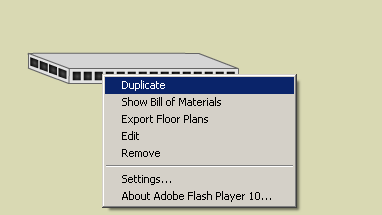
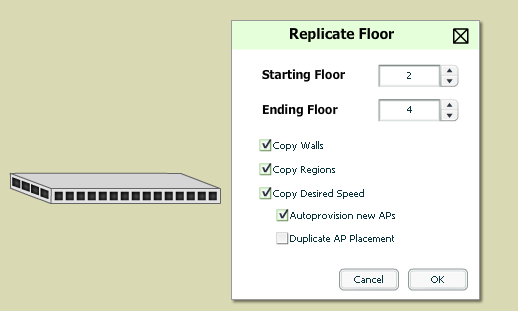
- Now click on the “Duplicate” option and choose the
starting and ending floor till where the Auto provisioning is required.
For e.g. if the APs are to be provisioned from 1st floor till 4th
floor then choose 2nd Floor to start with and ends at 4th
Floor. Choose what all you want to be copied and select – Auto provision
APs check box.
Click on OK to get the multiple
floor simulated.
floor simulated.
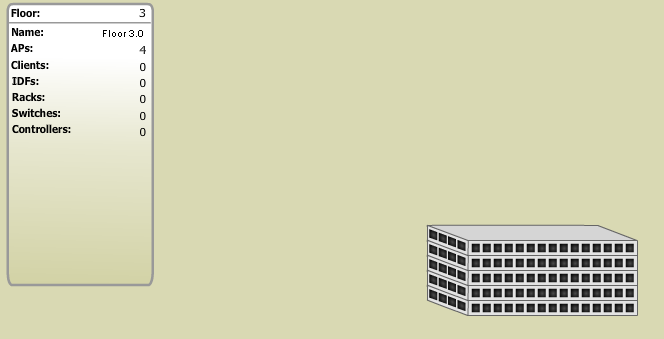
You will see multiple floors and
every floor have been provisioned with 4 APs as the first floor had 4 APs
provisioned
every floor have been provisioned with 4 APs as the first floor had 4 APs
provisioned
 .
.
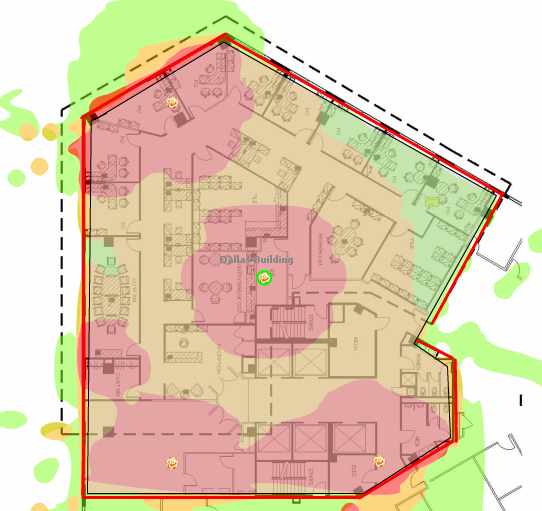
- Click
on any of the floor to check the AP provisioning Status of that particular
floor. You can also check the Floor above or below to find if the APs aren’t
overlapping. This is very important to know since this may cause
interference and the users will face wireless connection and disconnection
issues.
Generating Report
The AP provision part is completed
till here and now we need to handover the bill of material to the team which
will be deploying the APs in the building. This report will be auto generated
from Visual RF tool only.
till here and now we need to handover the bill of material to the team which
will be deploying the APs in the building. This report will be auto generated
from Visual RF tool only.
Right click on the
Building and select the Bill of material option as show below
Building and select the Bill of material option as show below
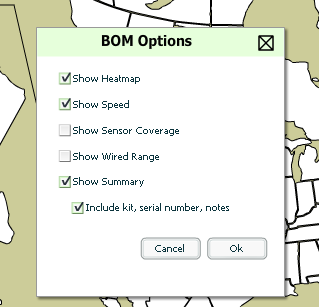
- Click on OK button. Visual
RF will generate a complete report in “.docx”
format.
****END
OF THE DOCUMENT****
OF THE DOCUMENT****